Setup, Placement & Troubleshooting
USB Soundbar for PC: Turn Your Monitor Into Real Audio
11th Oct•10 min read
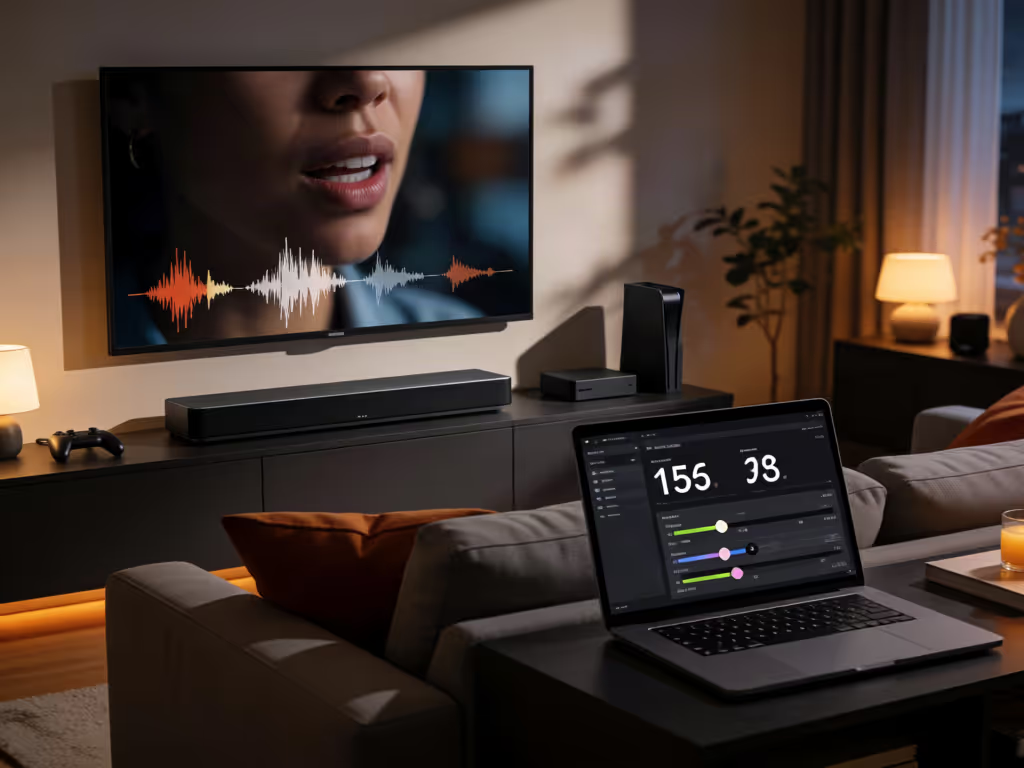
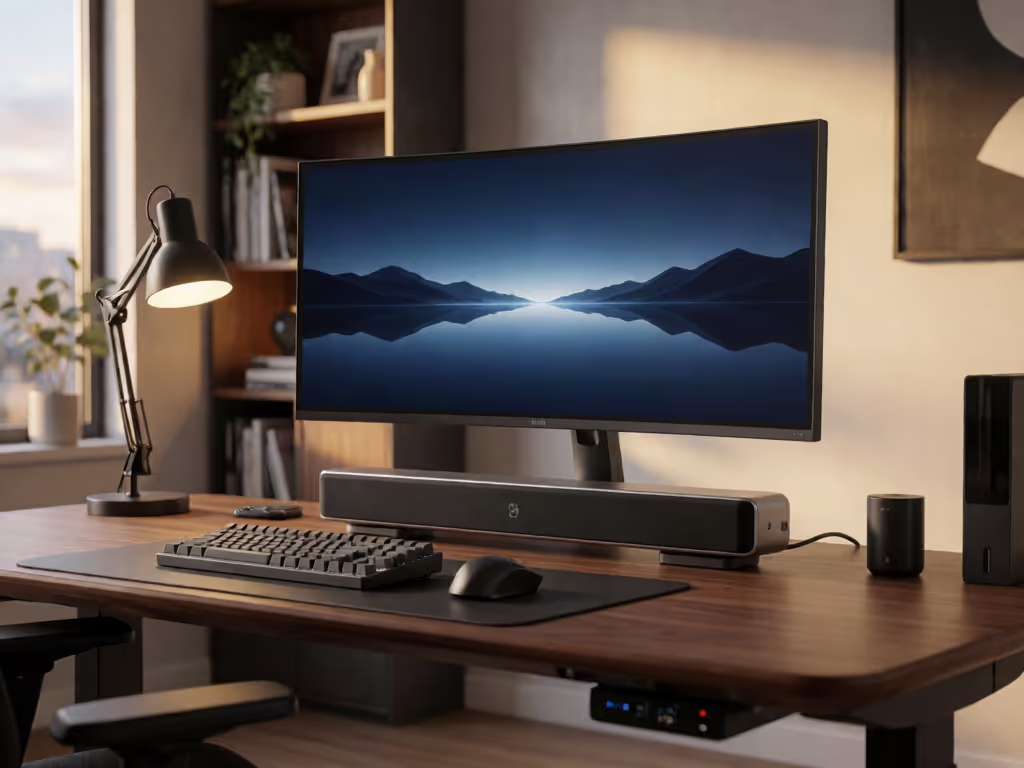
A compact soundbar setup begins with fit beneath your monitor and a documented connection path. Measure first, connect it correctly, then evaluate it with real dialogue rather than dramatic demo scenes.
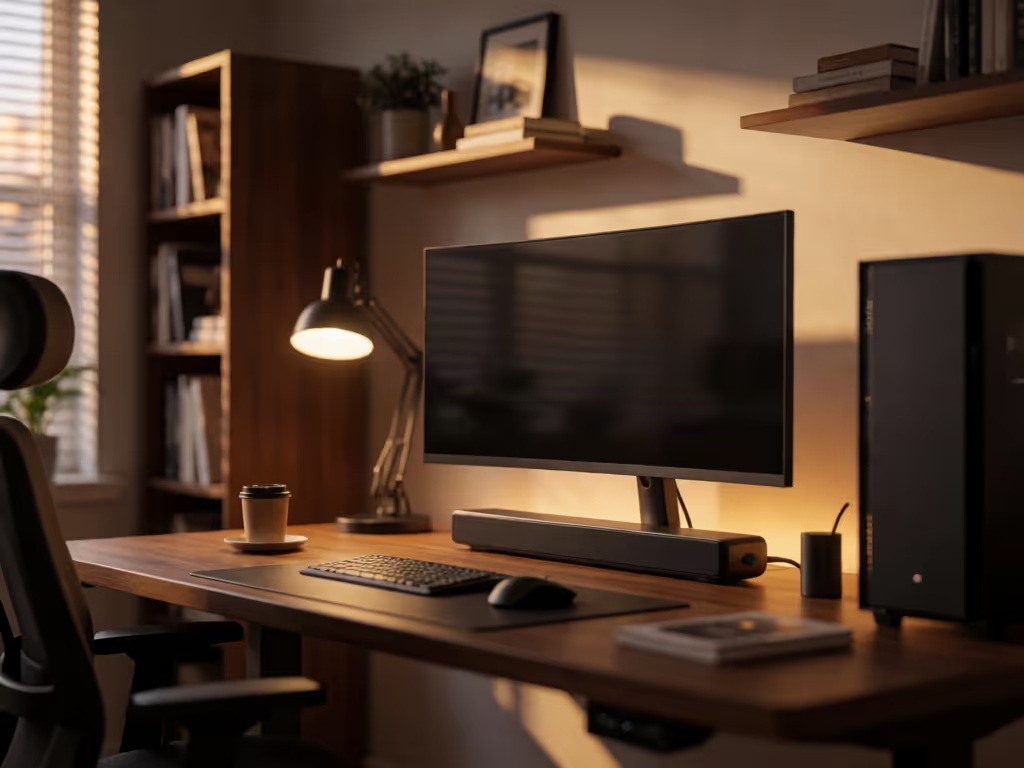
A compact soundbar setup can keep a PC desk focused on one bar when it fits beneath the monitor and its connection path is documented. For broader advice on balancing clear calls, entertainment, and limited desk space, see this home office soundbar guide. If you want a dedicated alternative to built-in monitor audio for games, calls, and shows, start with a setup you can use without rearranging your whole workspace.
Built-in monitor audio is one option. If you connect an audio device by USB or HDMI, Windows may require you to select it as the default output. A pair of separate speakers is another option for a desk, with its own footprint and cabling to consider when planning the workspace.
A gaming speaker bar places audio hardware directly below the screen. But “compact” alone does not establish whether a model suits your desk. Compare the product’s stated dimensions and setup instructions with the space beneath your monitor before buying.
If you can't hear whispers, it isn't immersive.
That is a useful consideration during quiet-hours viewing. Use familiar dialogue at your normal volume when deciding whether a setup suits your household.
Before shopping, look at the usable area beneath your display, not the overall desk width. Note the monitor stand or arm base, the bottom edge of the screen, USB hubs, and the path a cable must take to reach the PC. If you plan to use a shelf or a wall-mounted soundbar arrangement, review the product’s mounting instructions and plan the cable route first; renters in particular may prefer an option that does not require permanent changes.
Compare the bar’s stated dimensions with the space you intend to use. This is the first partner approval check: can the screen and soundbar occupy the positions you want without making the desk feel visually busy?
For a desk-based PC, start with the connection documented for your computer and chosen bar. The collected product details do not establish 3.5 mm/AUX compatibility, so do not plan around it. The Razer Leviathan V2 X, for example, uses a single USB Type-C cable for power and audio delivery and supports USB Audio Input to a PC; that is a model-specific setup rather than a rule for every desk.
In Windows 11, a connected USB or HDMI audio device may need to be selected as the default output. That is a normal setup step.
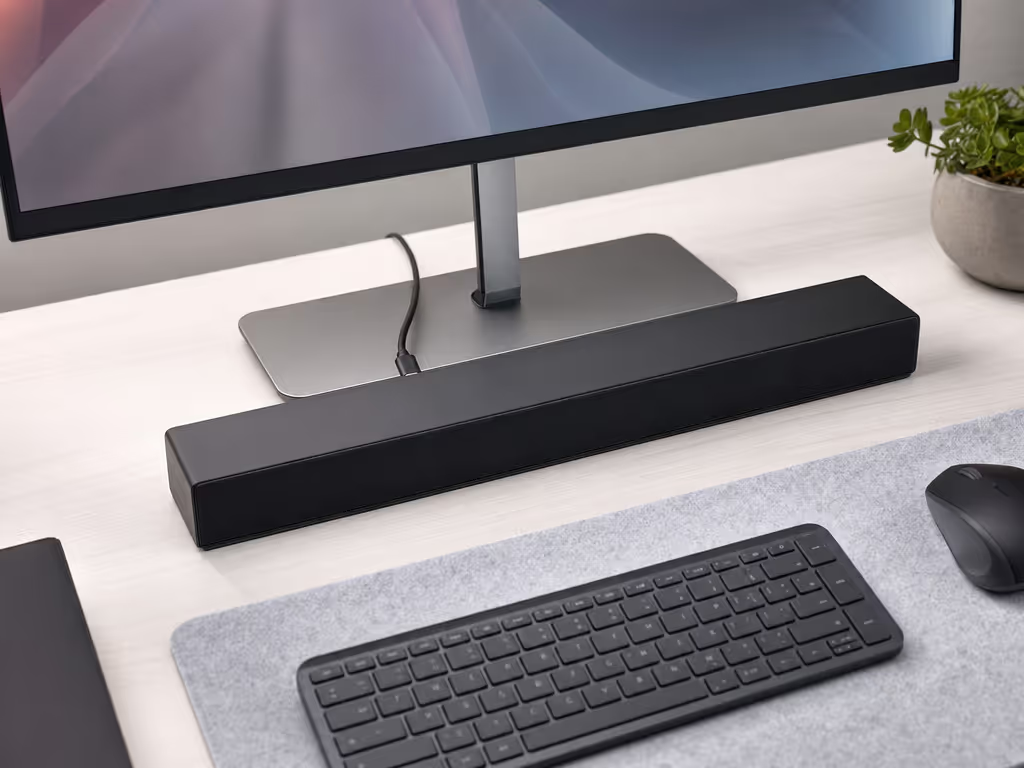
An under-monitor setup starts with a small decision sequence. It keeps the focus on the details that affect your workspace and connection process.
Measure:
Then identify:
Keep the product listing or manual open while you do this. Compare its stated dimensions and connection requirements directly against your workspace. This modest five-minute check keeps the decision grounded in the product details you can confirm.
For many people, the priority order is straightforward:
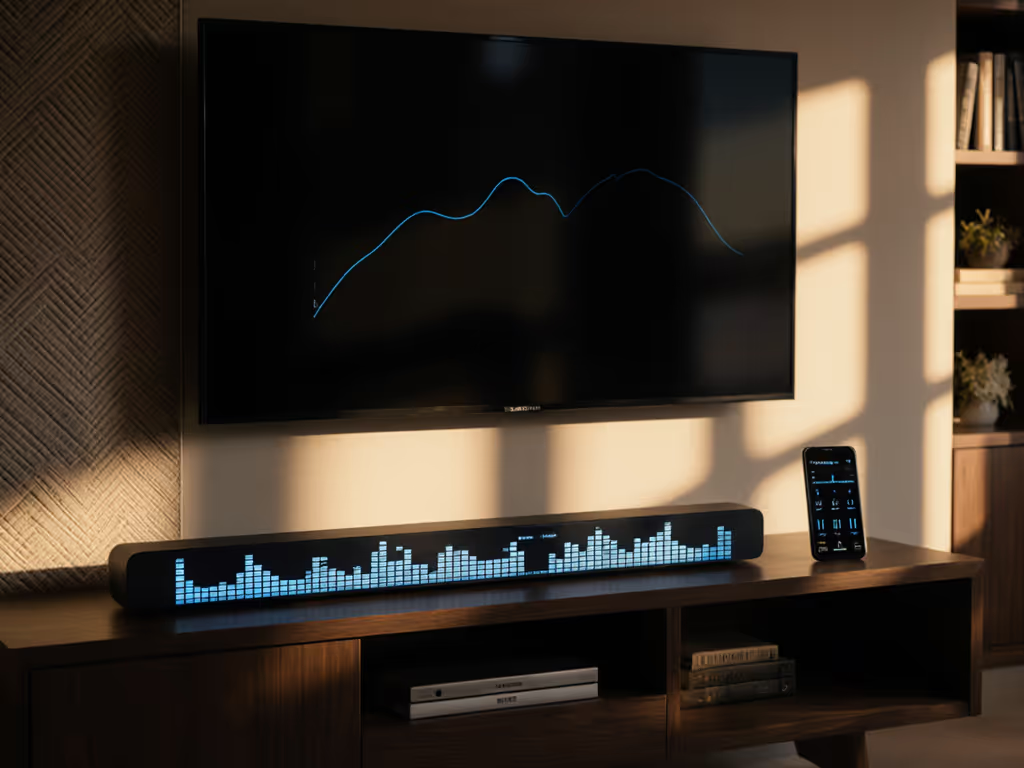
If the bar offers sound presets and sound adjustments, begin conservatively. Listen to a familiar spoken clip, then make one change at a time. If a setting makes consonants harsh or tiring, undo it. Choose the setting that best matches your own spoken-content test.
A desktop does not necessarily need TV-style CEC control. When multiple playback devices are available, it does need the preferred output selected before you begin a call, launch a game, or watch a video. Keep one preferred output selected in Windows and avoid leaving several similarly named audio devices active if that makes choosing the correct one confusing.
In Windows 11, open the taskbar speaker control, open the audio device list, and select the playback device you want. If a USB or HDMI soundbar is connected but silent, you may need to set the connected device as the default output. For a step-by-step look at getting HDMI, optical, and Bluetooth connections working, follow this soundbar setup guide. If trouble persists, check that cables are fully seated. Microsoft also advises turning off Audio enhancements when audio problems occur.
Use a short call recording, a dialogue-heavy video, and a game you know well. Listen at the volume you would honestly use on a weekday evening. This gives you a repeatable way to judge whether the setup matches your listening priorities.
This is how a small adjustment can change a shared home: after bedtime, I have found that dialing back the urge for dramatic bass and prioritizing dialogue can turn a rewind-heavy film into a relaxed finish. Spatial cues still matter, but they should support the scene rather than bury the people speaking.
The Razer Leviathan V2 X is one example of a compact PC-focused soundbar: Razer describes it as USB Type-C powered, with USB-C audio delivery and Bluetooth connectivity, in a compact desktop form factor. Its manufacturer-listed length is 400 mm, and Razer says it fits beneath a monitor. Those details make it worth considering only after you have confirmed that its physical footprint and USB-C approach suit your monitor and computer.
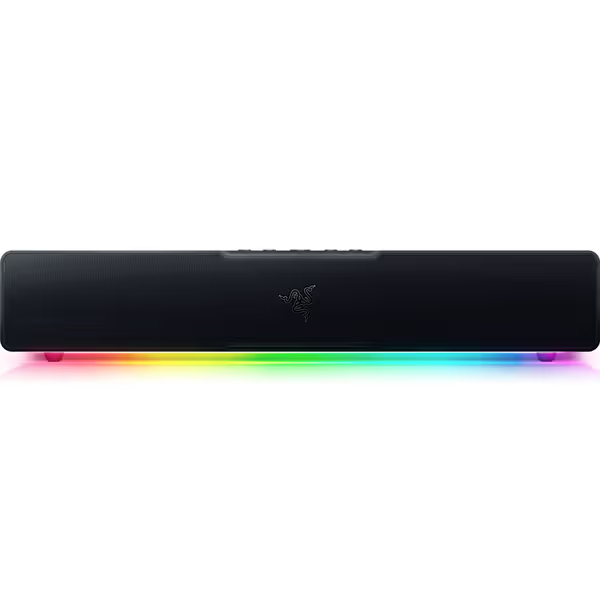
The important point is not that every desk needs this particular model. It is that the Leviathan V2 X has a documented single-USB-C power-and-audio setup for PC use. Treat extra features as secondary to fit and the connection process you plan to use.
There is no single best compact soundbar for every monitor desk. Start with a model whose stated dimensions fit your available space and whose documented connection works with your PC, then compare the controls and features that matter to you.
The Razer Leviathan V2 X is a compact USB Type-C-powered PC gaming soundbar. Razer documents USB Audio Input to a PC, plus Bluetooth connections to mobile phones and Nintendo Switch, and lists its length as 400 mm.
An under-monitor soundbar setup is worth considering when a model’s stated dimensions suit the available space and its documented connection path matches your PC. Measure the usable space, verify the exact connection path, and, for a USB or HDMI audio connection, select the connected device as the Windows output. Use familiar spoken content when evaluating the setup.
The final verdict is simple: choose a bar with documented dimensions and a connection process that matches your desk and computer. Test it through a normal work session or evening show before treating the setup as finished.