Setup, Placement & Troubleshooting
USB Soundbar for PC: Turn Your Monitor Into Real Audio
11th Oct•10 min read
Fix soundbar lip-sync delay by isolating the affected input, checking and restarting the equipment, confirming HDMI or optical connections, then changing one sync or audio-output setting at a time.
Important: An alignment test can show whether sound and picture match, but the available evidence does not establish a validated consumer method for measuring soundbar latency precisely in milliseconds.
A soundbar latency test is less about chasing a universal millisecond score and more about identifying where audio and picture stop lining up in your system. When dialogue arrives after a speaker's lips move (or before them), the quickest path is to map the signal path, test more than one input, and change only one setting at a time. That approach turns an irritating, vague problem into a controlled troubleshooting job.
Route first, then features; reliability makes rooms feel cinematic.
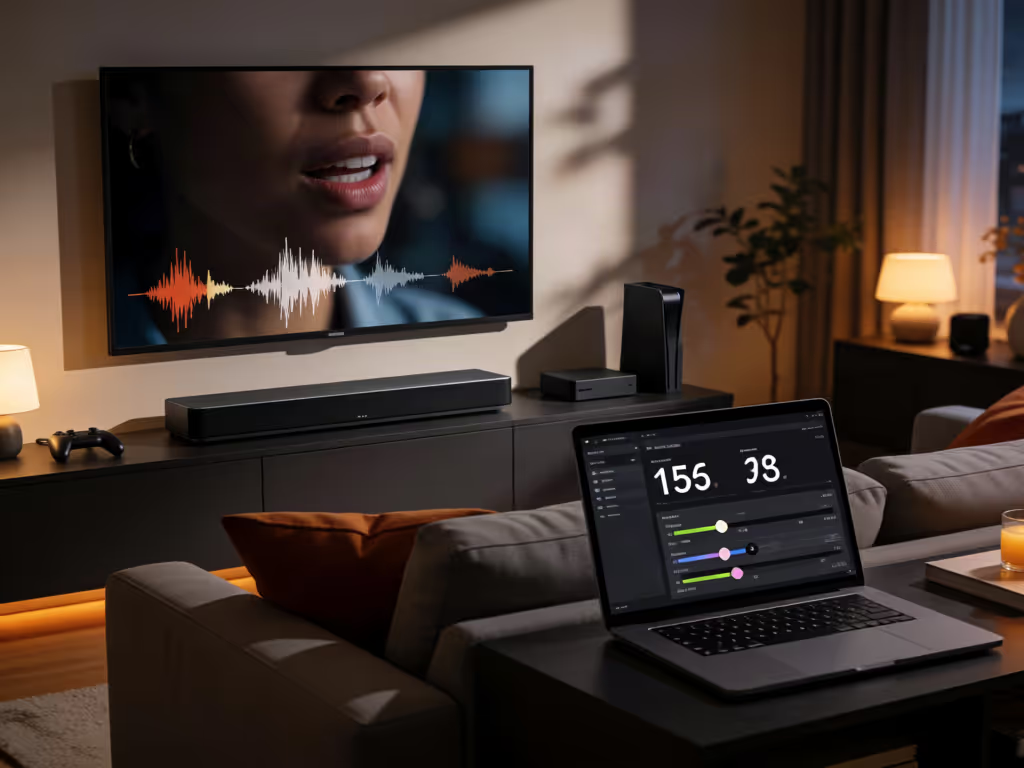
A soundbar lip-sync test checks whether the sound you hear aligns with the picture you see. It does not necessarily measure the soundbar's absolute latency in milliseconds, and there is no supported universal pass/fail number for TV lip sync.
That distinction matters. A number on a setting menu is usually an adjustment value, not a diagnosis. The useful result is simpler: determine whether the system is aligned, whether audio is ahead of video, or whether audio follows video.
A browser-based A/V sync test page is available from SoundBase and is described as checking whether sound and visuals are aligned. Treat it as an alignment check, not as a calibrated soundbar audio delay measurement tool: its documented information does not establish precision, methodology, or a millisecond result.
For a meaningful test, keep the conditions stable:
If the timing problem appears only on one channel or input, it is more likely to be source-specific than system-wide. A broadcast itself can be the cause, so do not rebuild your whole setup around one badly synchronized channel.
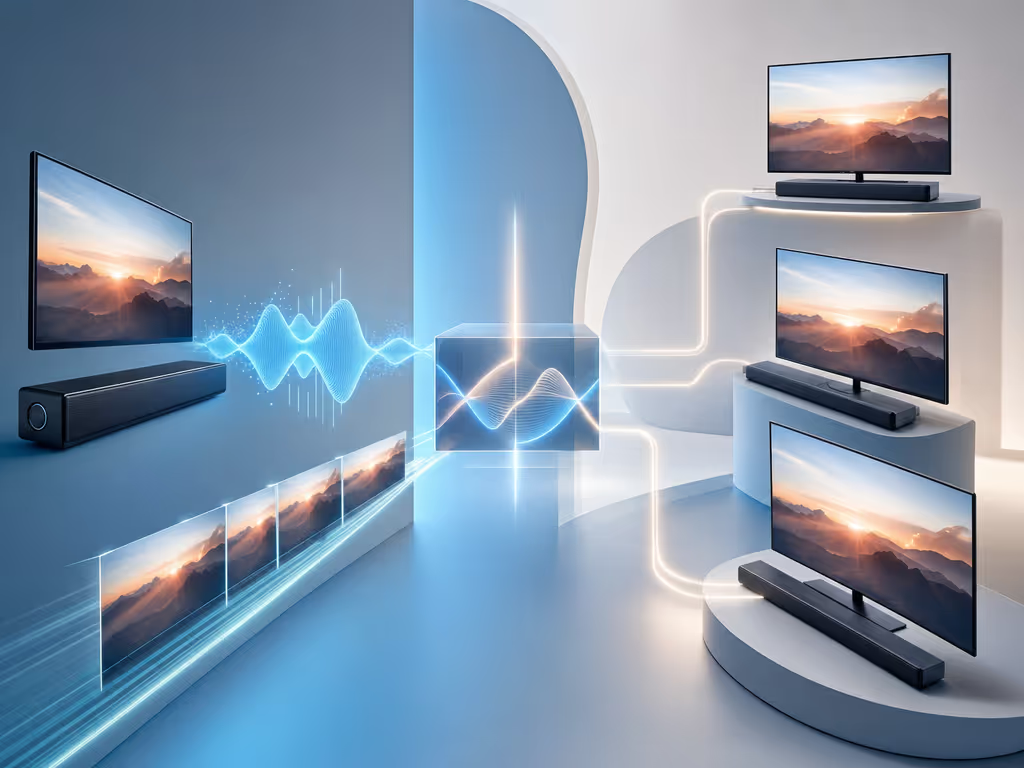
Write the chain in one line before opening menus:
Source → TV or switch → TV audio output → soundbar
The point is not to make the diagram complicated; it is to avoid adjusting the wrong device. If you need to verify each connection from scratch, follow this soundbar setup guide for HDMI ARC, optical, and Bluetooth configurations.
Projector rooms deserve the same discipline. A ceiling-mounted projector and a media cabinet across the room can make a simple chain feel mysterious, especially when return audio refuses to cooperate. In those layouts, mapping each source and output route before changing settings prevents cable changes from becoming guesswork.
Play your chosen alignment test or other consistent material through one input, then another. If one input is affected and another is not, preserve that observation. It narrows the problem before you touch audio settings.
Next, restart the TV, confirm its software is current, and inspect every connection in the active route. Loose or damaged HDMI and optical connections can contribute to A/V sync problems. For a Sony TV connected to a soundbar with delayed audio, Sony advises secure HDMI or optical connections; with HDMI, use the ARC/eARC ports on both devices. Do not assume any HDMI socket is the correct return-audio socket.
This is the unglamorous part of ARC hygiene, but it is often the most serviceable part. A secure, correctly routed connection is worth more than repeatedly nudging a sync control without knowing why.
Several documented causes can be involved:
The TV's own speakers may not show the same issue when processing in an external audio system is contributing to the delay. That comparison can be useful: if TV speakers are aligned but the soundbar is not, you have learned that the external-audio portion of the setup needs closer attention. It does not, by itself, identify one setting as the cause.
"Late" means the mouth moves first and the sound follows. Sony's TV guidance for this direction includes model-dependent troubleshooting options such as:
Make one change, rerun the same test, and keep a note of the outcome. PCM/LPCM and pass-through changes can alter the format of the audio being played, so treat them as timing troubleshooting steps, not as universally consequence-free upgrades.
Sony also notes that audio/video-sync adjustments on some home-theater systems using optical can span from 0 to roughly 250 ms. That is a control range, not a target and not a statement that a particular setting value fits every room.
Do not apply the same recipe blindly. Sony states that its A/V Sync setting delays the TV picture to match audio; on applicable models, turning A/V Sync off may improve timing when sound from the connected audio device is ahead of video.
This direction check is essential. A setting that improves late audio may be wrong for early audio. The aim is alignment, not moving a slider toward a number that worked in someone else's setup.
If your soundbar offers an Audio Sync or lip-sync control, use the instructions for that specific model. Samsung documents an Audio Sync feature intended to correct audio-delay or lip-sync errors, but the button sequence can vary by model: some remotes use Sound Control, Audio Sync, or Audio Sync +/- controls.
Test the control methodically:
On Samsung soundbars, the documented Audio Sync feature is unavailable when Bluetooth or USB is the source. That limitation applies to Samsung's feature; it is not a general claim about Bluetooth timing on every soundbar.
Not automatically. eARC is not a guaranteed lip-sync cure. Sony's troubleshooting guidance includes cases where turning off eARC mode may improve timing, with the possibility that audio then plays in a format different from the original.
The practical lesson is to treat eARC as one variable in the signal path, not as a promise. If eARC produces handshakes or dropouts, review this eARC setup guide for compatibility checks and troubleshooting steps. If you test it, document the before-and-after alignment and confirm you still receive the audio format you want.
After checking connections and output settings, Sony suggests a further isolation test: connect external devices directly to the soundbar instead of the TV. This is not a universal permanent wiring prescription; it is a way to compare routes when the normal configuration remains problematic.
If the result changes, you have useful evidence that the routes do not behave the same in your setup. Recheck the TV's applicable connection and output settings before deciding on a long-term layout. For additional solutions covering connection problems and sync issues, consult this soundbar troubleshooting guide. Keep cable discipline practical: use a route you can inspect, reconnect, and live with, not one that leaves you troubleshooting behind furniture every weekend.
First isolate whether the issue occurs across multiple inputs, then restart the TV, verify connections, and update TV software. For a Sony TV connected to a soundbar with delayed audio, confirm HDMI uses the ARC/eARC ports on both devices. From there, use the direction of the problem: Sony lists PCM/LPCM, A/V Sync, and pass-through changes for audio that follows video, while A/V Sync off may help on applicable Sony TVs when audio is early. Use your soundbar's model-specific sync control only one adjustment at a time.
Potential causes include a broadcast issue, loose or damaged connections, delay in an external audio system, unsuitable settings, or outdated TV firmware. If only one channel or input is affected, test a different one before changing the whole system.
An A/V alignment page can help you check whether sound and picture match, but a validated consumer procedure for turning that result into a precise millisecond measurement is not established here. Focus on repeatable alignment across the inputs you actually use.
There is no supported universal threshold in this guide. Judge the result by whether the audio and picture are aligned in your viewing setup rather than by chasing a generic number.
Once you reduce soundbar latency (or, more precisely, correct the A/V offset), write down the connection route and settings that worked. Note the active TV audio-output mode, A/V Sync state, pass-through state, eARC state, and soundbar sync position. That small record is invaluable after a firmware update, a moved console, or a cable swap.
For further exploration, map each source-to-display-to-soundbar route in your room and test them separately. The cleanest cinema setup is not the one with the most menu options; it is the one whose signal path stays aligned, stable, and easy to service.